


Most websites treat images as decoration. Upload, publish, done.
That’s a missed opportunity. Google indexes billions of images. Google Lens processes visual searches every second. And page speed, which images directly affect, is a confirmed ranking factor tied to Core Web Vitals.
If your images aren’t optimized, you’re leaving traffic on the table, slowing your site down, and giving Google less to work with when it tries to understand your content.
This guide covers everything, from alt text to image sitemaps to WebP conversion, with real examples at each step.
What is image SEO?
Image SEO is the process of preparing your images so Google can find, understand, index, and rank them in both regular search results and Google image search.
It covers technical work (file size, format, loading speed), on-page signals (alt text, file names, captions), and structural signals (image sitemaps, structured data). All of it working together tells Google what your images show and whether they deserve to rank.
Google can’t see images the way humans do. It reads the surrounding signals and uses Google Vision AI to make inferences about content. Your job is to make those signals as clear and accurate as possible.
Why image SEO matters for your rankings
Images affect your site in 2 ways that directly connect to rankings.
First, they’re a traffic source in their own right. Google image search sends real clicks. For eCommerce, food, travel, real estate, and photography sites, image search can be a meaningful percentage of total organic traffic.
Second, images affect page speed. A single uncompressed image can add 2-3 seconds to load time. That triggers Largest Contentful Paint (LCP) failures, which are a Core Web Vitals issue Google uses as a ranking signal. If you want to understand the full picture on that, the Core Web Vitals guide at FlowStackHub covers LCP, FID, and CLS in detail.
The two issues are connected. Fix your images, you fix both.
How to name image files for SEO
Image file names are one of the most ignored signals in image SEO. Google reads them.
A file named IMG_4872.jpg tells Google nothing. A file named chocolate-chip-cookie-recipe.jpg tells Google exactly what the image shows and connects it to a relevant search query.
The rules are simple:
- Use lowercase letters
- Separate words with hyphens (not underscores)
- Describe what’s actually in the image
- Include your target keyword where it fits naturally
- Keep it under 5 words
Bad: photo1_final_FINAL_v3.jpg Good: chocolate-chip-cookie-recipe.jpg
Do this before you upload. Renaming files after the fact means Google has already crawled the original URL. You’d need to re-upload and update references.
How to write alt text for SEO
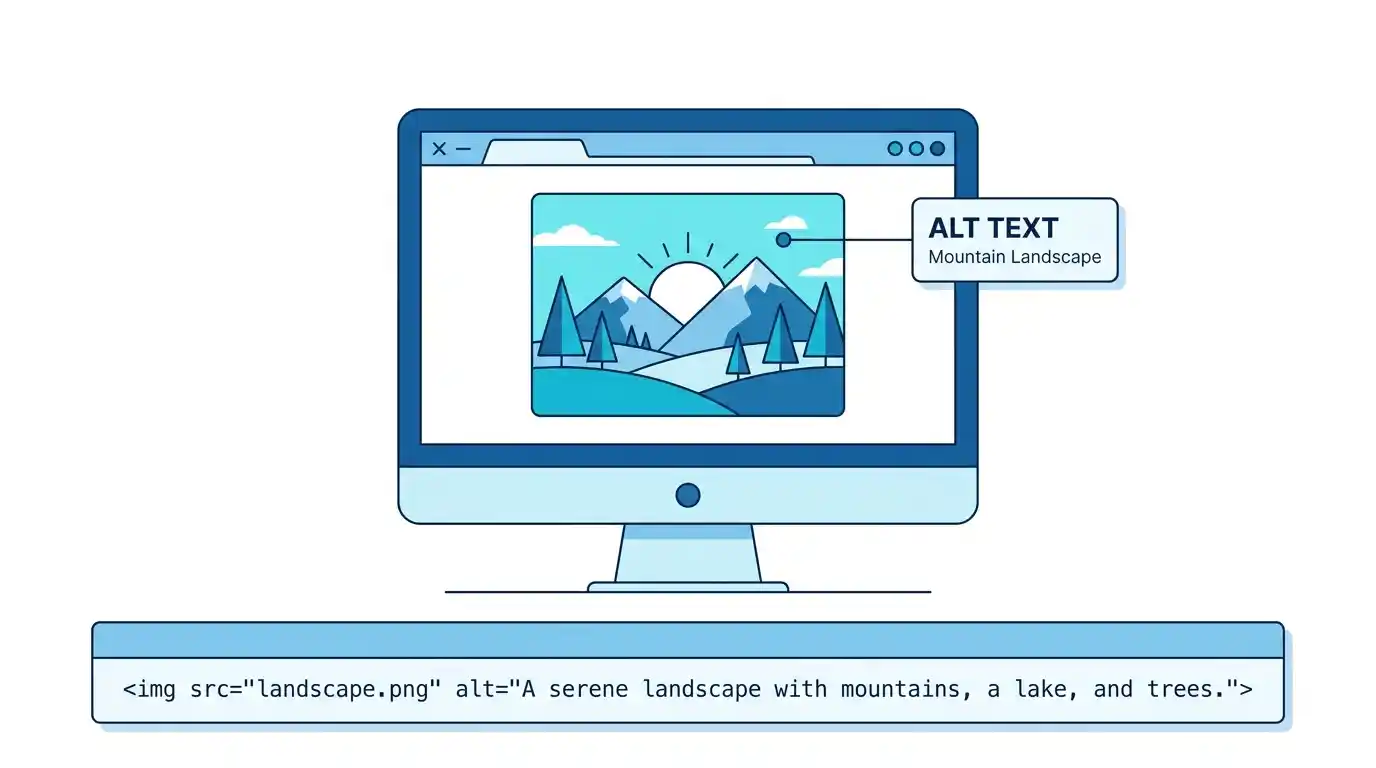
Alt text is the written description attached to an image in your HTML. It tells Google what the image shows. It also makes your site accessible to users who rely on screen readers.
Google’s own documentation confirms it reads alt text when indexing images. This is one of the clearest direct signals you have.
How to write good alt text:
- Describe what’s in the image specifically
- Include your target keyword if it fits naturally (don’t force it)
- Keep it under 125 characters
- Skip “image of” or “photo of” at the start (Google knows it’s an image)
- For decorative images that add no content value, leave alt text empty (alt=””) so screen readers skip them
Bad alt text: image of cookies Good alt text: freshly baked chocolate chip cookies on a wire cooling rack
For an eCommerce product, that becomes: Nike Air Max 270 in black and white, men's size 10
Specific, descriptive, and keyword-relevant without being stuffed. That’s the target.
What is the best image format for SEO in 2026?
WebP is the best image format for SEO in 2026. It produces smaller file sizes than JPEG and PNG while maintaining comparable visual quality. Smaller files load faster, which improves page speed and Core Web Vitals scores.
Here’s how the formats compare:
- WebP — best for most web images. 25-35% smaller than JPEG at equivalent quality. Supported by all modern browsers.
- JPEG — good for photographs. Use as a fallback for older browsers that don’t support WebP.
- PNG — best for images with transparency (logos, icons). Larger files than WebP.
- SVG — best for logos, icons, and simple illustrations. Scales perfectly at any size with tiny file sizes.
- AVIF — newer than WebP, better compression, but browser support is still growing. Worth watching.
If your site is on WordPress, plugins like ShortPixel or Smush can auto-convert uploaded images to WebP. Shopify handles WebP conversion automatically for most themes.
How to compress images without losing quality
Image compression reduces file size without (ideally) any visible degradation in quality. There are 2 types:
Lossless compression reduces file size by removing metadata and redundant data without touching the pixels. Quality is identical. PNG files typically use lossless compression.
Lossy compression reduces file size by permanently removing some image data. At moderate settings (80-85% quality in most tools), the quality loss is invisible to human eyes but the file size reduction is significant.
For most web images, lossy compression at 80-85% quality is the right call. You’ll typically cut 60-70% off the original file size with no visible quality difference.
Tools that work:
- Squoosh — free, browser-based, from Google. Shows before/after comparison in real time.
- TinyPNG — free online compression for PNG and JPEG
- ShortPixel — WordPress plugin with bulk compression
- Cloudinary — full image CDN with automatic compression and format conversion
For a practical test: take a 2MB product photo, run it through Squoosh at 82% WebP quality, and compare. You’ll typically get it under 200KB with no visible loss. That’s a 10x file size reduction on a single image.
Image dimensions and responsive images for SEO
Upload images at the actual size they’ll display. Uploading a 4000px-wide image for a 800px column wastes bandwidth and slows load time. The browser still has to download the full file even though it only displays a fraction of it.
Resize images to their display dimensions before uploading. For a blog post with a 1200px wide content area, upload at 1200px wide (or 2400px for retina displays).
For responsive sites, use the srcset attribute to serve different image sizes to different screen sizes. This is an HTML-level optimization that lets mobile users download smaller files:
<img src="cookie-recipe-800.jpg"
     srcset="cookie-recipe-400.jpg 400w,
             cookie-recipe-800.jpg 800w,
             cookie-recipe-1200.jpg 1200w"
     sizes="(max-width: 600px) 400px, 800px"
     alt="chocolate chip cookies on a cooling rack">
Most modern WordPress themes handle srcset automatically. But if you’re building custom pages or landing pages, check that this is in place.
Lazy loading images for SEO
Lazy loading means images only load when a user scrolls close to them, instead of loading everything at once when the page first opens.
For pages with lots of images, this can dramatically improve initial page load time. Google’s PageSpeed Insights and Core Web Vitals metrics both reward faster initial loads.
The HTML implementation is one attribute:
<img src="product-photo.jpg" alt="product description" loading="lazy">
One important rule: don’t lazy load your above-the-fold images. The hero image or featured image at the top of your page should load immediately. Lazy loading only makes sense for images below the fold.
WordPress added native lazy loading support in version 5.5. Most themes apply it automatically now. If yours doesn’t, check your theme settings or add the loading="lazy" attribute manually.
Image captions and their effect on SEO
Image captions are the text displayed directly below an image on the page. Google reads them as contextual signals for the image.
Research from Nielsen Norman Group found that people read image captions at higher rates than body text. Users scan pages and captions catch the eye.
For SEO, captions add keyword-relevant text near the image, which reinforces the topical association. You don’t need a caption on every image, but for key images in a post, a 1-2 sentence descriptive caption is worth adding.
Example caption for a product image: “The Nike Air Max 270 features a full-length Air unit for all-day comfort. Available in 12 colorways.”
That’s descriptive, keyword-relevant, and useful to the reader.
How to create an image sitemap for SEO
An image sitemap tells Google about images on your site that it might not discover through normal crawling, especially images loaded via JavaScript or embedded in complex page structures.
You can add image information to your existing XML sitemap. The format looks like this:
<url>
  <loc>https://yoursite.com/cookie-recipe/</loc>
  <image:image>
    <image:loc>https://yoursite.com/images/chocolate-chip-cookies.jpg</image:loc>
    <image:title>Chocolate chip cookie recipe</image:title>
    <image:caption>Freshly baked chocolate chip cookies on a wire rack</image:caption>
  </image:image>
</url>
If you’re on WordPress with Yoast SEO or RankMath, both plugins automatically include image data in your sitemap. Check your sitemap at yoursite.com/sitemap.xml to verify images are included.
After updating your sitemap, submit it in Google Search Console under the Sitemaps section.
Structured data for images: schema markup
Schema markup for images uses the ImageObject type from schema.org. It tells Google structured information about your images, including the content URL, dimensions, and description.
For most blog posts and articles, the Article schema already includes image information via the image property. But for eCommerce product pages, recipes, and news articles, adding explicit ImageObject markup helps Google understand and display your images in rich results.
A basic ImageObject example:
{
  "@context": "https://schema.org",
  "@type": "ImageObject",
  "contentUrl": "https://yoursite.com/images/chocolate-chip-cookies.jpg",
  "description": "Freshly baked chocolate chip cookies on a wire cooling rack",
  "name": "Chocolate chip cookie recipe photo",
  "width": 1200,
  "height": 800
}
Google’s structured data documentation covers image structured data in full, including how to add license information.
How to check if Google is indexing your images
Open Google Search Console. Go to the Coverage or Pages report and look for any image-related crawl errors.
For a direct check, go to Google and search: site:yoursite.com followed by a specific image search. Or use the URL Inspection tool in Search Console on a page with important images and check whether Google has indexed the images on that page.
If your images aren’t showing in Google image search after 2-4 weeks of being published, common causes are:
- Images blocked in robots.txt
- No alt text or very generic alt text
- Images loaded via JavaScript without server-side fallbacks
- Images on pages with noindex tags
- Images not included in your sitemap
Run your site through a crawl tool like Screaming Frog or use SEMrush or Ahrefs to audit image issues across your full site.
Image SEO for eCommerce
Product image SEO has a few rules specific to eCommerce.
Each product image needs a unique, descriptive file name. If you sell 50 variations of the same shoe, every image should have a distinct name: nike-air-max-270-black-white-mens.jpg, not product-1.jpg.
Alt text should include the product name, key attributes (color, size, material), and brand name where relevant.
For Shopify, the platform handles WebP conversion automatically. Yoast for WooCommerce adds product image schema markup. Both help, but neither replaces writing proper alt text and file names manually.
Product images also benefit from multiple angles and context shots. Google’s image recognition picks up on image content, and a product shown in use (on a person’s foot, in a kitchen, in a room setting) gives Google more signals than a plain white background product shot alone.
Image SEO for WordPress: practical setup
Here’s the setup that covers the main bases:
- Install ShortPixel or Smush to auto-compress and convert images to WebP on upload
- Set image dimensions in WordPress media settings to your actual display sizes (this controls the sizes WordPress generates on upload)
- Use Yoast SEO or RankMath — both add image data to your sitemap automatically
- Add alt text manually on every image upload through the Media Library (don’t leave it blank and rely on plugins to generate it)
- Check lazy loading is active — WordPress 5.5+ applies it by default, but verify in your theme settings
For site speed, also check whether your images are served through a CDN. Cloudflare’s free plan includes basic image caching. Cloudinary is a more powerful option if you’re managing a large image library.
If your site still has speed issues after compressing images, the Core Web Vitals fix guide covers what else to check beyond images.
Using Google Lens as an image SEO opportunity
Google Lens lets users search by pointing their camera at something in the real world. It matches against indexed web images.
For product-based businesses, this is a growing traffic channel. When someone photographs a product they like, Google Lens can surface your product page if your images are properly indexed and optimized.
The same signals help here: descriptive alt text, proper file names, structured data, and original images (stock photos shared by thousands of sites will lose to original photography).
If you run a restaurant, a retail store, or sell physical products, investing in original product photography and optimizing those images is probably the highest-ROI image SEO work you can do right now.
Image SEO checklist
Before publishing any page with images, run through this:
- File name is descriptive and keyword-relevant (hyphens, lowercase, under 5 words)
- Alt text is written specifically, under 125 characters, no keyword stuffing
- Image is compressed to under 150KB for standard web images (under 100KB is better)
- Format is WebP where possible, JPEG as fallback
- Dimensions match the display size on the page
- Above-the-fold image has no lazy loading attribute
- Below-the-fold images have loading=”lazy”
- Caption added to key images where it adds context
- Image included in sitemap (verify in Yoast/RankMath)
- Structured data added for product or recipe images
This takes about 5 minutes per page once you’ve built the habit. The compounding effect over 100 pages is a meaningfully faster site with more indexed images.
FAQs about image SEO
What is image SEO and why does it matter? Image SEO is the practice of preparing images so Google can index, understand, and rank them. It matters because images affect page speed (a ranking factor), appear in Google image search (a traffic source), and help Google understand page content through visual context.
Does image alt text help SEO rankings? Yes. Alt text is one of the primary signals Google uses to understand what an image shows. Descriptive, keyword-relevant alt text helps images rank in Google image search and reinforces the topical relevance of the page for regular search rankings.
What is the best image format for SEO in 2026? WebP is the best format. It produces smaller file sizes than JPEG and PNG at equivalent quality, which improves page load speed. All modern browsers support WebP. Use JPEG as a fallback for older browsers.
Does image file size affect SEO rankings? Yes, indirectly. Large image files slow page load time, which affects Core Web Vitals scores, specifically Largest Contentful Paint. Google uses Core Web Vitals as a ranking signal, so large uncompressed images can hurt your rankings by slowing your site.
How do I create an image sitemap? If you’re on WordPress, Yoast SEO and RankMath both add image data to your XML sitemap automatically. For non-WordPress sites, you can add image tags to your existing sitemap manually following Google’s image sitemap format, then submit the sitemap in Google Search Console.
Should I use stock photos or original images for SEO? Original images are better for SEO. Stock photos shared across thousands of sites give Google duplicate signals. Original photography is unique, more likely to earn backlinks and social shares, and performs better in Google Lens visual search. Use original images for key pages wherever you can.
Where to go from here
Image SEO isn’t a one-day project. It’s a habit you build into your publishing workflow.
Start with the images on your highest-traffic pages. Run them through Squoosh, update the alt text, check the file names. Then build the habit forward so every new image you publish is already optimized before it goes live.
If you’re dealing with a larger site-wide audit, the full on-page SEO checklist covers images alongside every other on-page signal. And if slow rankings are a wider problem, this guide on why websites don’t rank gives you a broader diagnosis framework.
Image SEO is one piece of the authority picture. For how Google evaluates the credibility and trustworthiness of your whole site, the E-E-A-T guide on FlowStackHub covers what matters beyond individual page signals.
Ready to get your full SEO setup right? Explore FlowStackHub’s SEO services or get in touch with the team to talk through where your site stands.